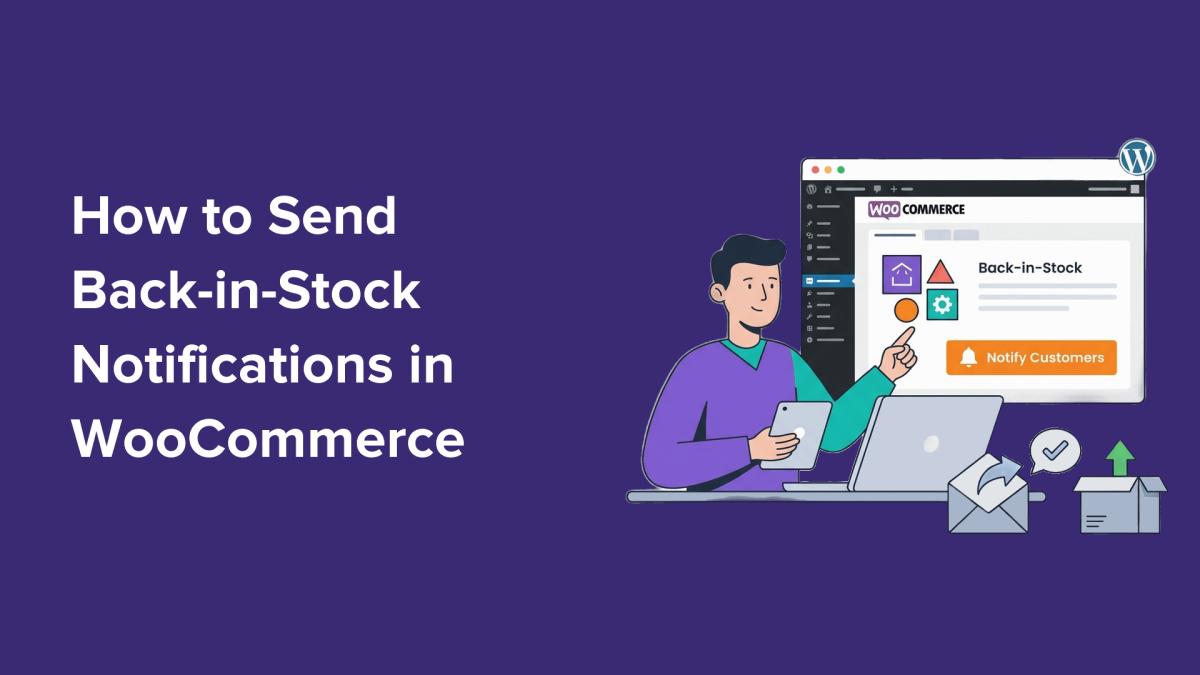
Out-of-stock products create more than just missed sales opportunities for WooCommerce store owners. They represent moments when interested customers might turn away and shop elsewhere. Fortunately, adding a back-in-stock notification system gives these shoppers a direct path back to your store the moment the product is available again. This tutorial walks you through two practical methods to set up back-in-stock notifications in WooCommerce without any coding.
Key Takeaways
- Back-in-stock notifications help recover lost sales by alerting customers as soon as products are restocked.
- WooCommerce requires third-party plugins to enable back-in-stock alerts, with Merchant Pro and Back in Stock Notifier as top options.
- Setting up SMTP email delivery improves notification reliability by preventing emails from being marked as spam.
- Merchant Pro offers an all-in-one toolkit with waitlist features plus 40+ sales-boosting modules, ideal for store owners seeking consolidation.
- Back in Stock Notifier is a free plugin that provides dedicated waitlist functionality with customizable settings for budget-conscious stores.
Before You Start: Set Up an SMTP Plugin
WordPress by default sends emails using the PHP mail function, which many spam filters flag due to lack of proper authentication. This can cause your back-in-stock notifications to land in spam or be blocked outright. To improve email deliverability, install an SMTP plugin that routes your emails through a trusted service with verified sender credentials.
WP Mail SMTP is a widely trusted option compatible with WooCommerce. It supports multiple email providers and offers detailed email logging when using the Pro version. This setup ensures your customers receive back-in-stock alerts reliably, a critical step before enabling notification plugins.
Method 1: Sending Back-in-Stock Notifications Using Merchant Pro (Best for All-in-One WooCommerce Toolkit)
Merchant Pro is a premium WooCommerce plugin designed to consolidate multiple sales and marketing features into a single lightweight package. Its Waitlist module lets you set up back-in-stock notifications with ease, alongside more than 40 other conversion tools such as trust badges, countdown timers, and frequently bought together blocks.
Step 1: Install and Activate Merchant Pro
Start by creating a Merchant Pro account on the aThemes website. Purchase and download the plugin, then upload it to your WordPress site through the Plugins page and activate it.
Step 2: Open the Waitlist Module
From your WordPress dashboard, locate the Merchant Pro settings under WooCommerce or the Merchant menu. Navigate to the Waitlist module to enable and configure back-in-stock notifications.
Step 3: Configure the Waitlist Module
Merchant Pro offers several configuration options:
- Form Settings: Customize the text and appearance of the waitlist signup form that appears on out-of-stock product pages, ensuring it fits your store’s branding.
- Email Settings: Set the email content and sender details for the back-in-stock notifications. This is where your SMTP setup plays a key role in deliverability.
- Shortcode Settings: Use shortcodes to place waitlist signup forms anywhere on your site if you want to extend signups beyond product pages.
Step 4: Enable the Waitlist Module
Make sure the Waitlist module is active and save all your settings. Test the signup form on an out-of-stock product to verify it appears correctly.
Step 5: Alternative – Send Stock Update Emails Manually
If you prefer manual control, Merchant Pro also allows you to manage waitlist subscribers and send stock update emails manually from the dashboard, though automated emails are recommended for real-time engagement.
Method 2: Using the Back in Stock Notifier for WooCommerce Plugin (Free Method)
For stores on a budget or those needing a dedicated waitlist plugin, Back in Stock Notifier for WooCommerce is a feature-rich free option. Though it requires more setup, it provides robust control over notification behavior.
Step 1: Install and Activate the Plugin
Install the plugin from the WordPress plugin repository via your dashboard. Activate it to access its settings panel.
Step 2: Access the Plugin Settings
Navigate to WooCommerce > Settings > Back in Stock Notifier. This area controls all aspects of the notification system.
Step 3: Configure Plugin Settings
Key sections include:
- Front End Form: Customize how the notification signup form looks on product pages, including fields such as email and name.
- Visibility Settings: Decide which user roles can sign up and on which product types the form appears.
- Message Settings: Set confirmation and error messages shoppers see after signing up.
- Mail Settings: Configure the email template and sender details. Again, a working SMTP setup is critical here.
- Background Process Settings: Manage how and when notification emails are sent to avoid server overload.
- Bot Protection: Enable CAPTCHA or honeypot techniques to prevent spam signups.
- Auto-Delete Settings: Automatically remove old or inactive subscriptions to keep the list clean.
- Quantity Field and Additional Options: Allow customers to specify the quantity they want or estimate arrival dates for stock updates.
Step 4: Visit Your Out-Of-Stock Product Pages
After configuration, check your out-of-stock product pages to confirm the notification form is visible and functional. Test signup and email receipt to ensure everything works smoothly.
Bonus: Optimize Your WooCommerce Store to Increase Sales
Back-in-stock notifications are just one part of a broader sales recovery and engagement strategy. Consider pairing them with abandoned cart recovery tools, personalized product recommendations, and loyalty programs to maximize customer retention and sales.
For example, using Merchant Pro’s other modules such as trust badges and countdown timers can improve buyer confidence and urgency, complementing the waitlist feature.
What This Means for WordPress Users
Implementing back-in-stock notifications in WooCommerce is a straightforward yet impactful way to reduce lost sales and strengthen customer relationships. From my experience working with WooCommerce stores, customers who opt into waitlists are highly motivated buyers. Re-engaging them at the right moment often results in quick conversions without additional advertising spend.
Choosing the right tool depends on your store’s scale and budget. Merchant Pro is ideal for merchants wanting an integrated solution that reduces plugin bloat and adds multiple growth features in one package. On the other hand, the Back in Stock Notifier plugin suits smaller or budget-conscious stores needing focused waitlist functionality.
Regardless of the method, configuring a reliable SMTP email system should be your first step to prevent critical email delivery issues. Real-world deployments show that many stores lose significant revenue simply because customers never receive their notification emails due to spam filtering.
Adding back-in-stock notifications signals to customers that you value their interest and intend to keep them informed. This builds trust and loyalty, encouraging repeat visits and purchases over time. For agencies managing multiple WooCommerce clients, offering back-in-stock notification setups is also a valuable service that can differentiate your support offerings.
Frequently Asked Questions
Why doesn’t WooCommerce have built-in back-in-stock notifications?
WooCommerce focuses on core e-commerce functionality and leaves specialized features like back-in-stock alerts to third-party developers. This keeps the core lightweight and lets store owners choose plugins tailored to their needs.
How can I ensure my back-in-stock emails don’t end up in spam?
Setting up an SMTP plugin like WP Mail SMTP to handle outgoing emails improves authentication, reducing the chance your messages are flagged as spam. Also, customize your email content to avoid spammy language and include unsubscribe options.
Can I customize the appearance of the back-in-stock signup form?
Yes, both Merchant Pro and Back in Stock Notifier allow customization of the form’s text, fields, and styling to match your store’s branding and improve user experience.
Is it better to automate sending notifications or send them manually?
Automated notifications ensure customers receive alerts immediately after restocking, which maximizes conversion chances. Manual sending gives control but risks delays and lost sales.